
This may be useful for adding or making changes to a large number of contracts at once.
You can only add or edit contracts for their own Trust.
- You must at least have “Edit” access in order to successfully upload a spreadsheet of edited contracts.
- You must at least have “Admin” access in order to successfully upload a spreadsheet containing new contracts.
Option 1 (of 2)
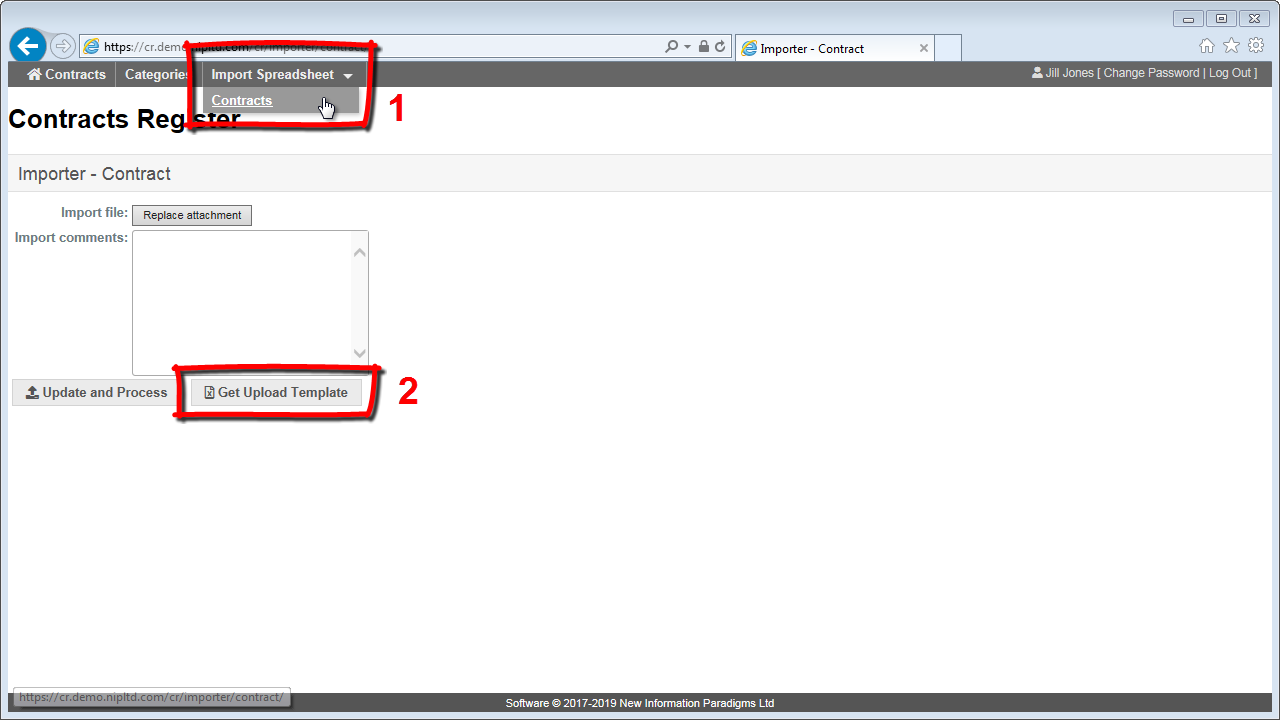
If only adding new contracts to the Contracts Register you can download a spreadsheet containing the column headings needed for importing:
- click on “Import Spreadsheet” > “Contracts” in the top menu
- click on the “Get Upload Template” button at the bottom of the page
- save the .xlsx file to your computer
Option 2 (of 2)
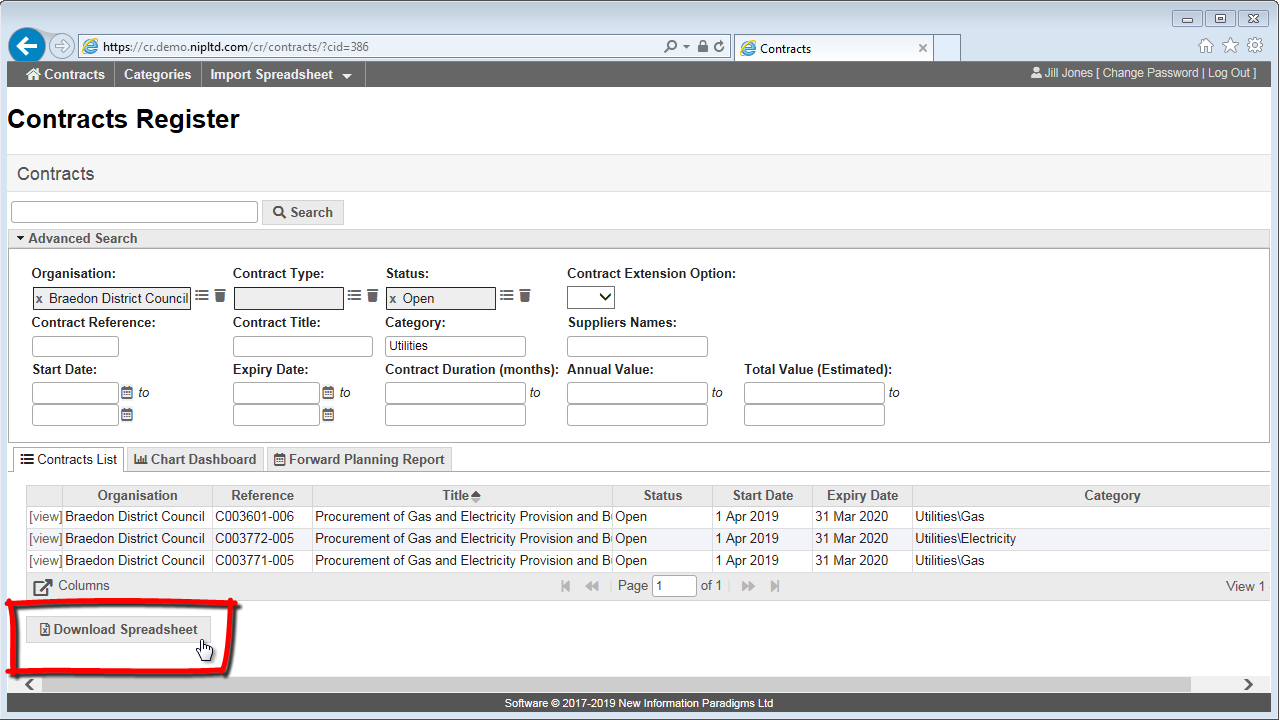
Alternatively, if editing existing contracts (or if editing and adding contracts simultaneously) you’ll need to download a spreadsheet containing those contracts you wish to edit:
- use the search function to filter the contracts you’d like to edit
- click the ‘Download Spreadsheet’ button at the bottom of the list of contracts
- save the .xlsx file to your computer
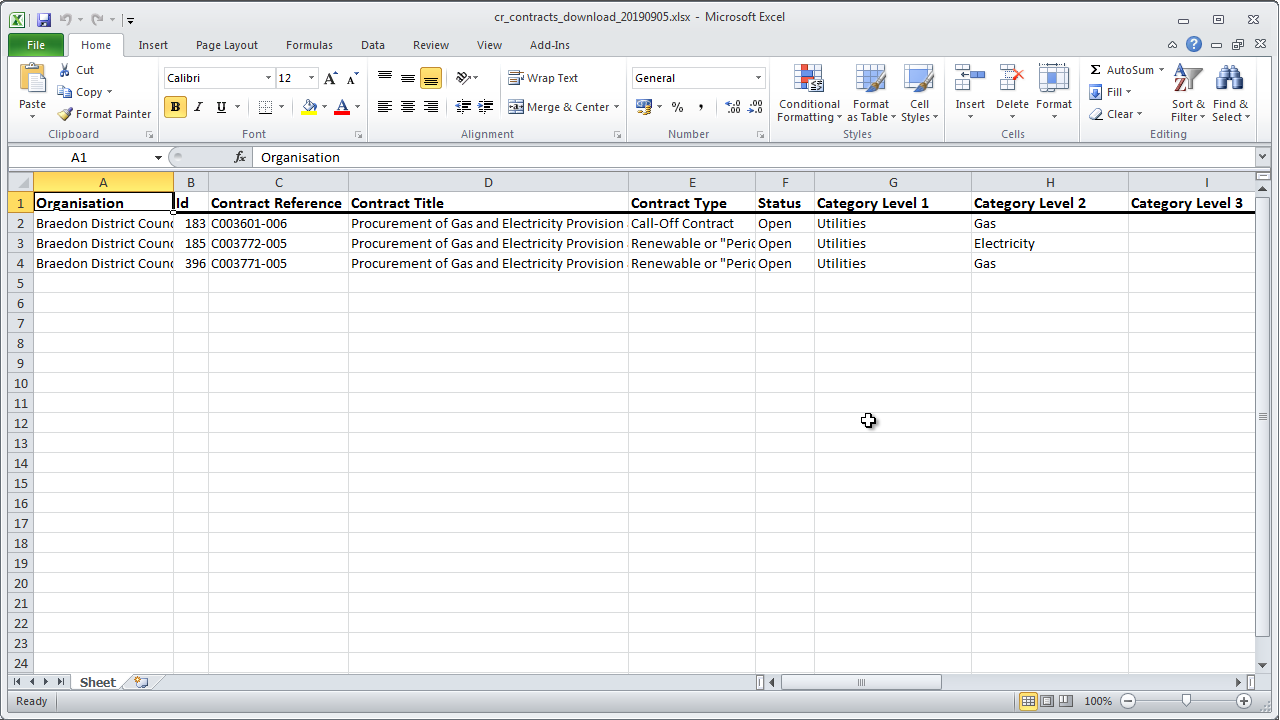
Take care to enter the correct format of data in each column, the Contract Register will reject any data not entered correctly (explained in Step 3).
Note: some fields are mandatory – see field descriptions for detail. To see a list of all available categories click on the ‘Categories’ menu link in the Contract Register.
3.1 Test your spreadsheet – The first step is to make sure the spreadsheet with your data is correctly formatted. To do that:
- click on “Import Spreadsheet” > “Contracts”
- click on the “Replace attachment” button
- click on the “Browse” button and choose the file you prepared in Step 2
- click on the “Save New File Attachment” button
- click on the “Update and Process” button
The system will now check your data.
If the importer finds no errors in your data, it will present a “Do Import” button and you can skip to 3.4 below.
3.2 Deal with any errors – If there are any errors with the data, a message will appear at the top of the page in red saying “There were the following errors in processing the import:” with a further message indicating what specifically is wrong.
If the error is in the column headings it will list those headings that do not conform.
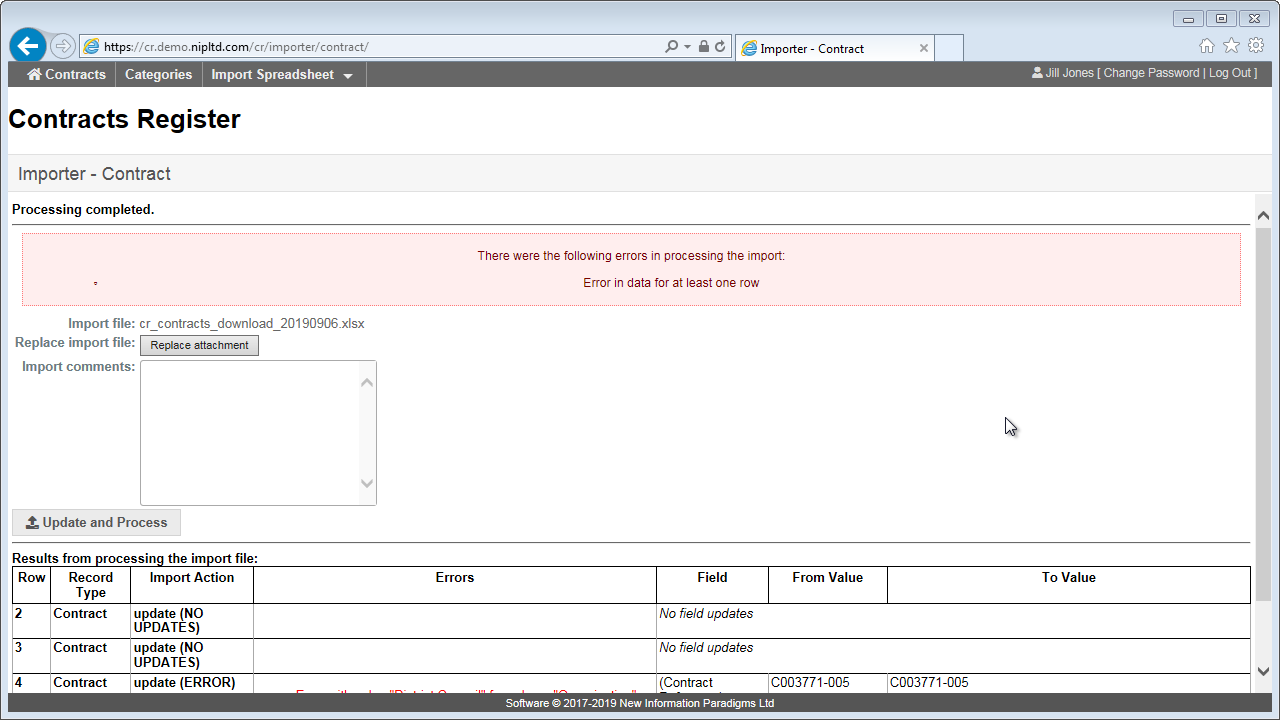
There may be several of these errors, so check the entire page.
Return to Step 2 for guidance to ensure your data is in the correct format.
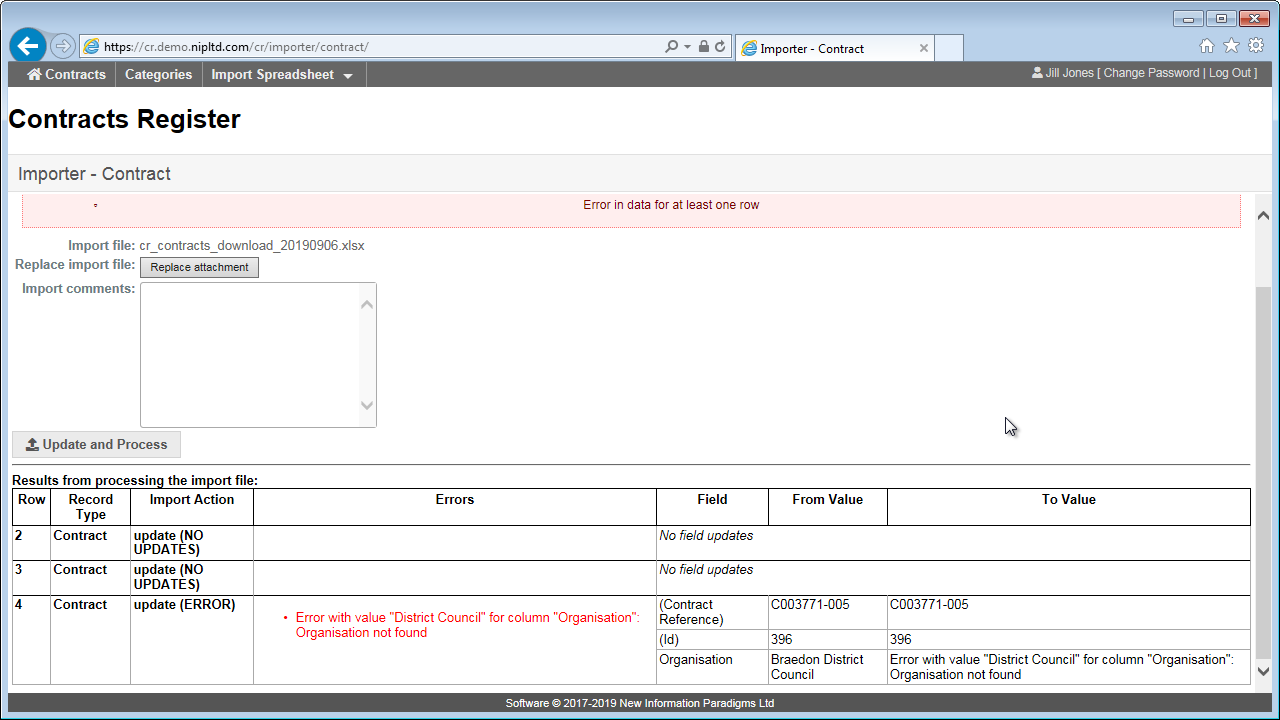
3.3 Re-check your data – Once you have corrected the errors in your spreadsheet by returning to Step 3.1 (you can skip the first bullet if you still have the page open – as shown here).
At this point no data has yet been changed on the Contract Register.
You can scroll down the page and view summaries of the contract records that will added or edited.
Once you are happy to make these changes, click on “Do Import”. This will perform the changes and cannot be undone. You should now see the confirmation text “Import completed”.