
Note: Further guidance is available on how to add or edit users using a spreadsheet export and import.
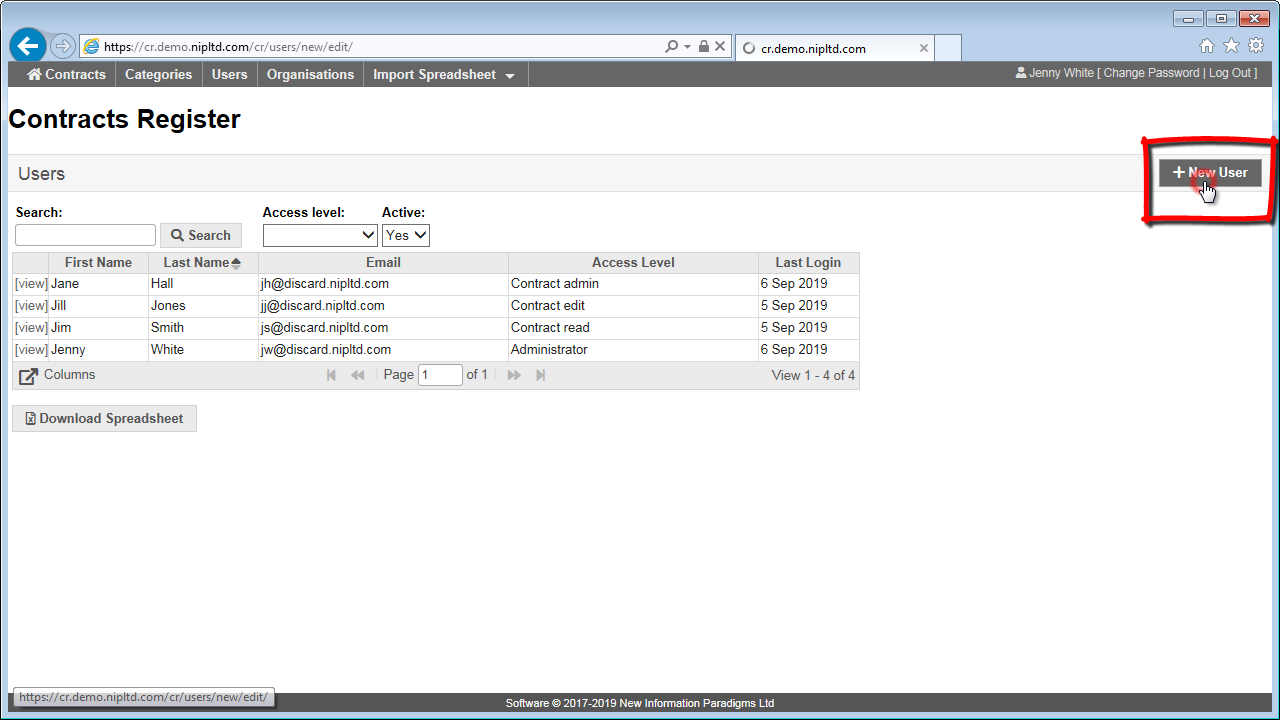
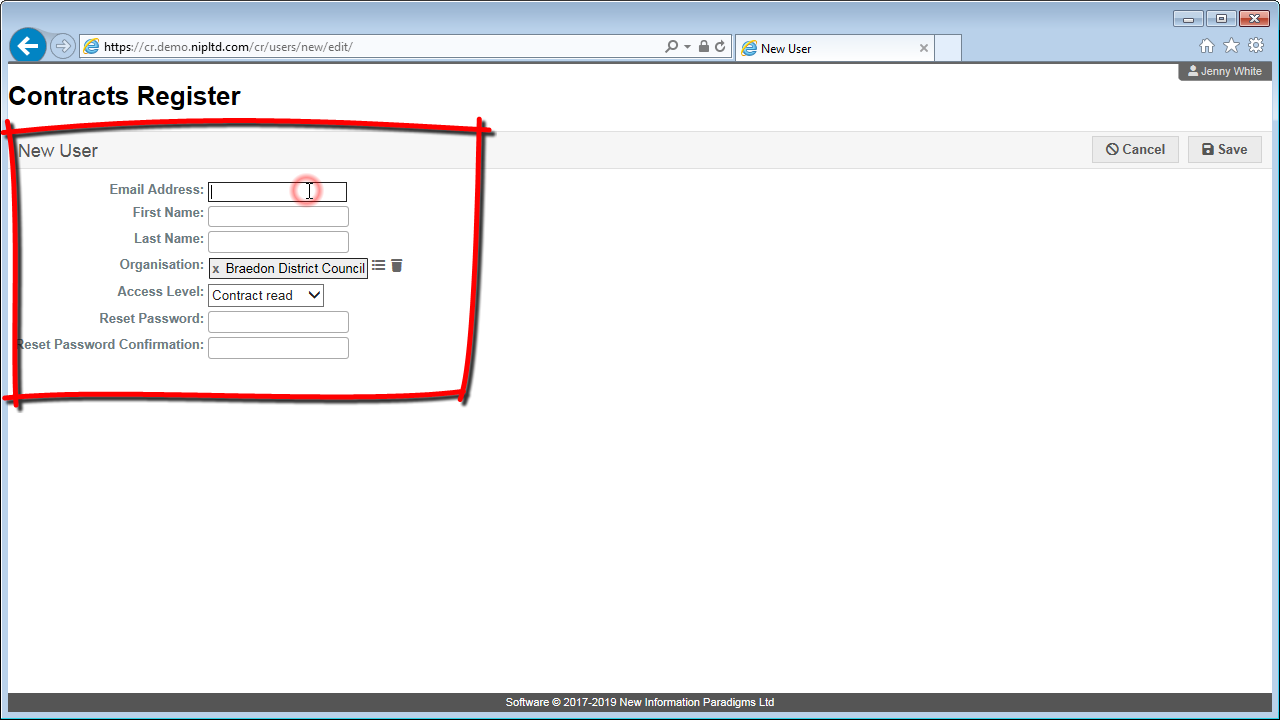
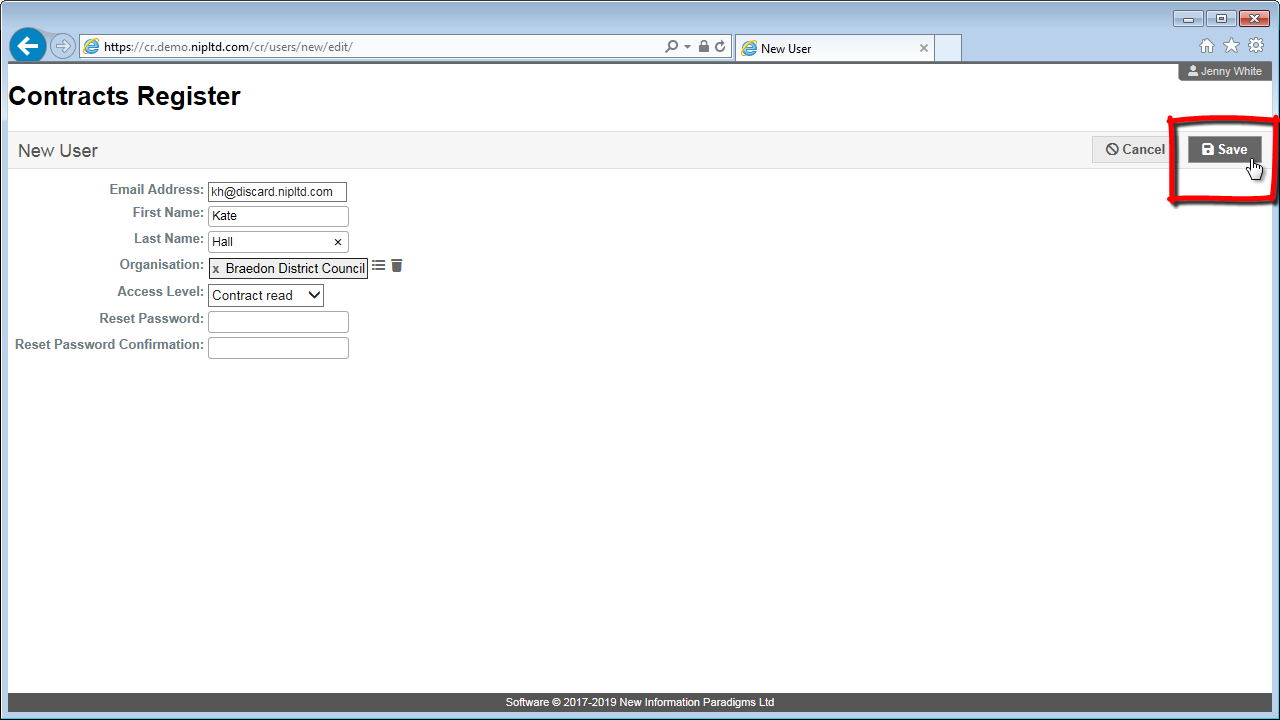
Note: some fields are mandatory – see field descriptions for detail.
You can see an explanation of the different Access Levels users can be granted here.
Any new users created in the Contract Register will need to be instructed on how to access the site, select a password and log in.
It is recommended that you email new users directly to also set any necessary context for why they have been added.
This email ought to include the:
- aims and objectives of the Contracts Register
- link to the Contracts Register home page
- instructions on where to find this link in future (e.g. linked from intranet, or instruction to save this mail or bookmark the webpage in their browser)
- link to the 'Help' site (that may include more detail on aims and objectives, and will be updated with FAQs)
- intended responsibilities expected of the new user (e.g. if they are requested to add/edit contracts, or how regularly they are expected to review content)
- access level they have been given
- a link to a 'help' page explaining the different access levels may be useful
Finally, copy and paste the following instructions that the new user will need in order to select their own password and log in to the Contracts Register:
1 - go to the Contracts Register homepage (insert link)
2 - click the “Forgotten your password?” link
3 - enter email address
4 - this will trigger the system to send you an email instructing you how to set your own password which will enable you to log in
5 - (If you don't receive an email shortly after this, repeat the steps above ensuring that you are using the correct email address. If you still don't receive an email check with the administrator that your user account has been registered correctly)
As long as the email address entered into the "Forgotten your password?" form matches that of the user account registered in the system - this will trigger the system to send them an email instructing them how to set their own password which will enable them to log in.
Administrators may alternatively set a user's password manually. To do so:
- click on “Users” in the menu
- click on the “[view]” link next to the user you wish to set a password for
- click on the “Edit” link in the top right
- enter the desired password in the “Reset Password” and “Reset Password Confirmation” fields.
- click on “Save” in the top right
The password is now set, but you still need to instruct the user how to log in using their email address and the password you have just created.