Choosing the Filters
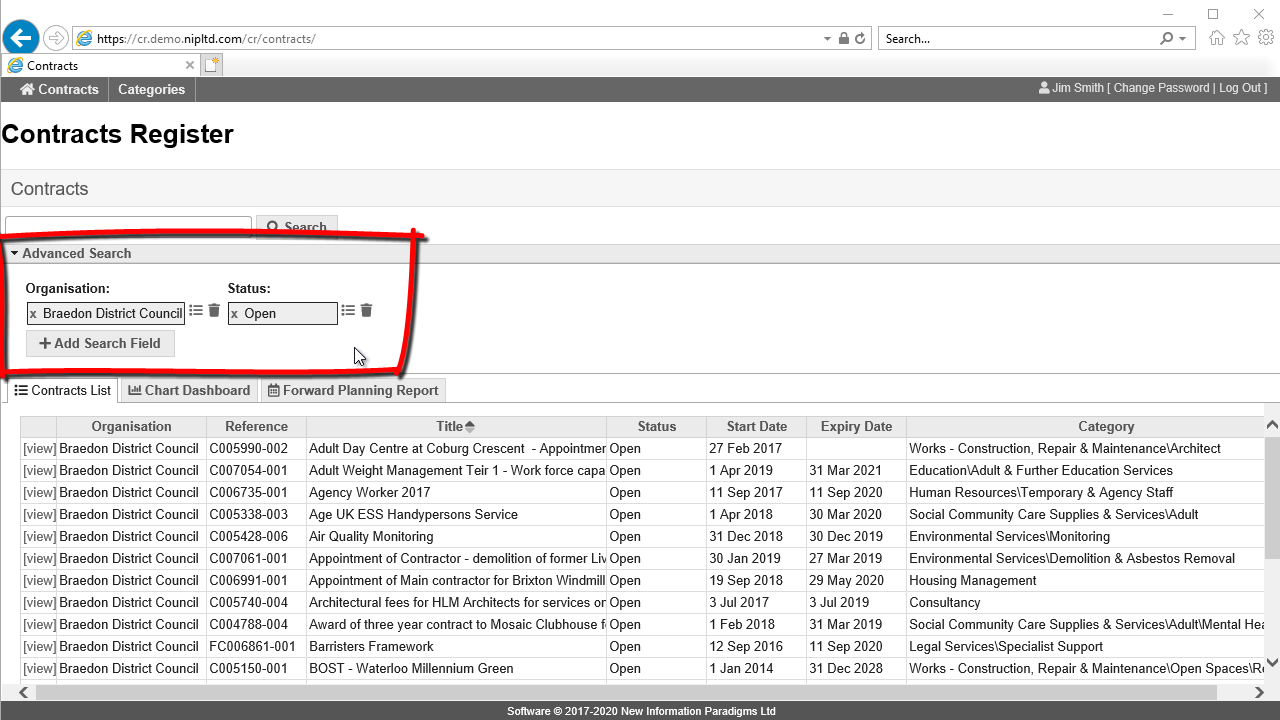
To choose the fields you want to search on click on the +Add Search Field button. Then choose the field required from the drop down list and click +Add. You can add as many fields as required. When you have added all the fields you require click Done.
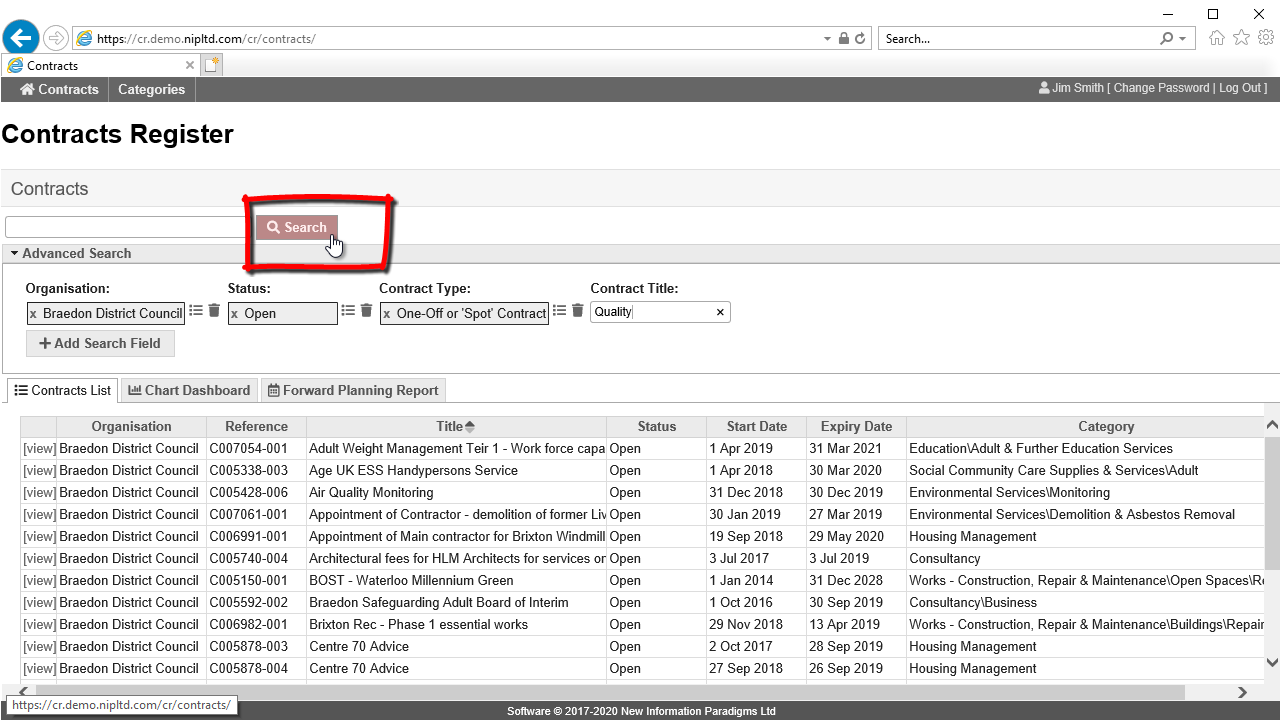
For filters with icons to the right (e.g. Organisation or Start Date) click on the icon to choose what to search for. The dustbin icon clears the filter.
For filters with no icon (e.g. Contract Reference) type directly into the filter.
You need only enter content into the filters you wish to use.
When you are ready to carry out the search, click the search button. It will turn back to grey and the results of your search will be shown.
How to search and view contracts shows how to further explore the contracts found.